
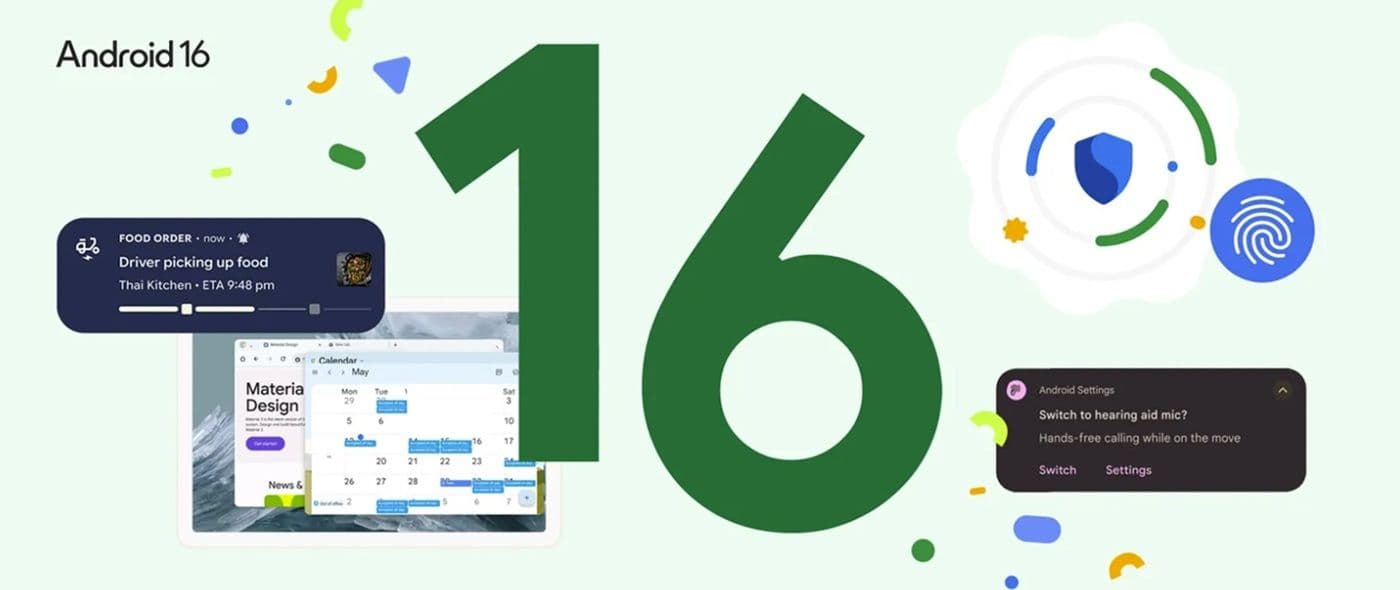
Android 16: Top 13 Features You Should Know and Use
 By Festus AyomikeSenior Editorabout 1 year ago
Quick Answer
Explore Android 16’s standout features: notification auto-grouping, live updates, desktop windowing, enhanced security, and see why you should upgrade today.
Advertisement
Since Android 15 set a high bar for innovation, Google’s latest Android 16 update takes things even further. As an Android enthusiast, I’ve spent the last few weeks testing out the developer previews and beta releases.
Let me share why I like these new features because of how they improve everyday use, and why I recommend you upgrade to Android 16, because they’ll make your device more organized, efficient, and secure.
See Also: Apple iPhone vs Samsung Galaxy: Which is the Better Smartphone
Forced Notification Auto-Grouping
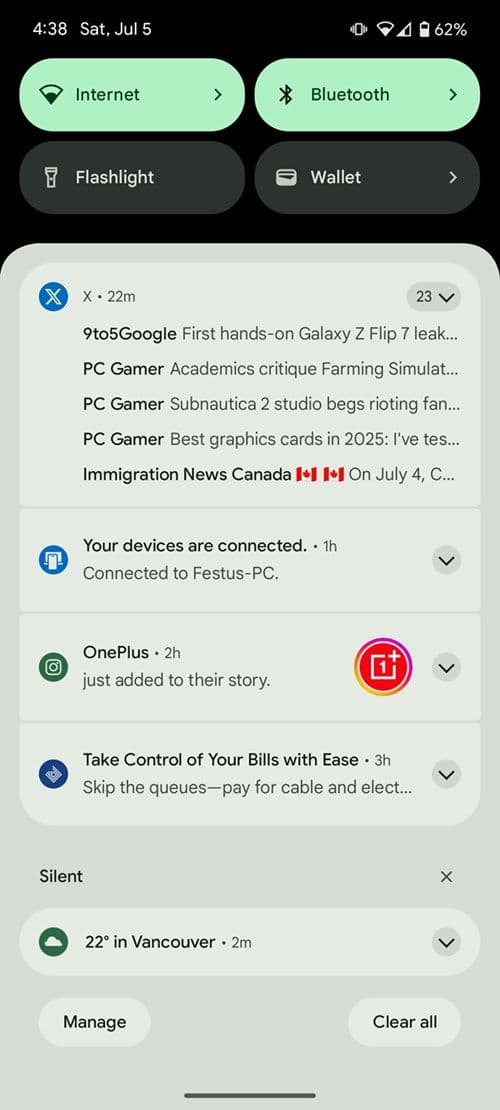
Notifications can quickly spiral into chaos, especially if you use multiple messaging apps, news feeds, and social media on one device. I like this feature because of how it bundles related alerts automatically.
Instead of dozens of individual pings, Android 16 groups notifications by app or conversation thread, drastically reducing clutter on your lock screen and in your notification shade.
Live Updates in Notifications
With Android 16, you get real-time “live updates” directly in notifications. Whether you’re tracking a ride-sharing car, a food delivery, or your e-commerce package, a progress bar appears in line, eliminating the need to constantly switch apps.
I like this feature because of how it streamlines the experience; your status is always front and center. Android 16 live updates turn your notification shade into a dynamic dashboard, saving you time and taps whenever you need quick status checks.
See Also: Samsung Exynos 2500 vs Snapdragon 8 Elite: Which Chipset is Better?
Desktop Windowing for Tablets
If you use an Android tablet for work, you’ll love the new desktop windowing. You can open multiple app windows, move them around, resize at will, and even snap them side by side, just like on a desktop computer.
I like this feature because of how it transforms a tablet into a genuine productivity powerhouse. Group related apps together (for instance, email, calendar, and notes) and switch contexts seamlessly.
The Android 16 desktop windowing feature brings true multitasking to Android tablets, so you can ditch that bulky laptop for on-the-go efficiency.
See Also: Apple iPhone 16 Pro Max vs Xiaomi 15 Ultra: Which is Better
Advanced Protection Mode
Security is more important than ever. Android 16’s Advanced Protection mode bundles Google’s strongest safeguards, malicious app blocking, phishing-proof browsing, scam call detection, and more, into a single tap.
I like this feature because of the peace of mind it provides: one setting to lock down your device against a spectrum of online threats.
How to turn on Advanced Protection
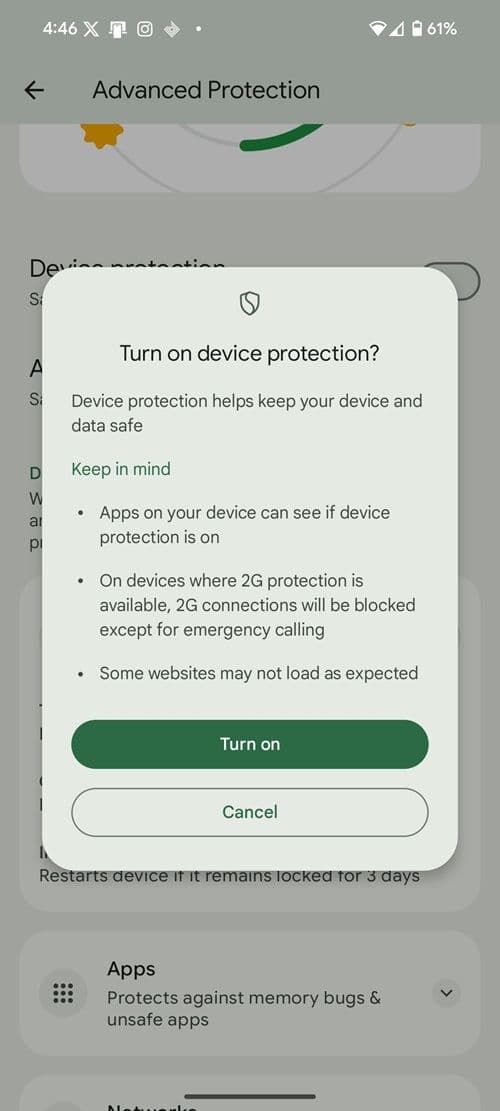
To turn on advanced protection on your smartphone, follow the steps below:
- Go to Settings
- Click on Security & Privacy
- Select Advanced Protection
- Toggle on Device Protection
- Read the short message on the prompt and click Turn on
The Advanced Protection feature makes your Android phone a fortress, protecting sensitive data and credentials without juggling multiple security settings.
Hearing Device Support and LE Audio Integration
For those with hearing loss or audio challenges, Android 16 now supports a broader range of hearing devices. You can control volume and modes directly from quick settings, switch between hearing aids, and even use your phone as an audio input source when you have an LE Audio-compatible device. I like this feature because of the inclusivity it fosters and the clarity it brings to everyday calls.
How to activate the Hearing Device
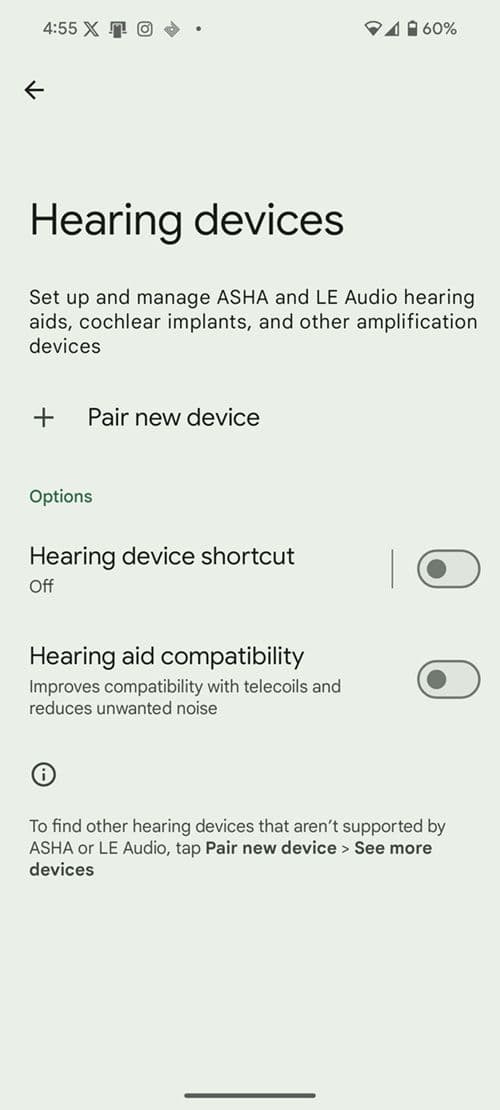
To activate the hearing device assistant on your Android smartphone, follow the steps below:
- Go to Settings
- Click Accessibility
- Select Hearing devices
- Click Pair new device to add a new hearing device
- Toggle on the hearing device shortcut to add the icon to your screen
- Toggle on hearing aid compatibility for unwanted noise reduction
The built-in hearing device support ensures crystal-clear audio for everyone, no matter which brand of hearing aids you use.
See Also: Snapdragon 8 Elite vs Dimensity 9400+: Which is Better
Custom Keyboard Shortcuts on Tablets
If you pair a keyboard with your Android tablet, say hello to custom shortcuts. Android 16 lets you map any action, like taking a screenshot, launching search, or toggling split-screen, to your favorite key combinations.
I like this feature because of how it accelerates workflows; launching your go-to apps or actions is now as simple as pressing a couple of keys.
On a tablet running Android 16, the keyboard shortcuts feature will turn your tablet into a productivity machine, letting you stay in the zone without touching the screen.
See Also: Google Pixel 9 Pro XL Specifications
Taskbar Overflow Management
Ever reached the point where your taskbar is overflowing with app windows? Android 16 introduces an intelligent taskbar overflow. Open too many windows, and a subtle arrow appears; tap it to reveal hidden apps.
I like this feature because of how it keeps your workspace tidy and prevents apps from disappearing off-screen.
Taskbar overflow ensures you always know where your apps are, no matter how many you have open at once.
Slider Haptics for Volume and Brightness
Adjusting volume or brightness is now more tactile. Android 16 brings slider haptics, providing a gentle vibration for each step you nudge the bar. I like this feature because of the precision and feedback it delivers; you can dial in the exact level you want without looking.
The slider haptics make everyday adjustments feel delightfully physical and satisfyingly precise.
See Also: Google Pixel Phones Now Receiving Android 16 Update
Adaptive Refresh Rate
Smooth animations and longer battery life have often been at odds. Android 16’s adaptive refresh rate dynamically switches between high refresh rates (for gaming and scrolling) and lower rates (for static content), balancing performance and power.
I like this feature because of the seamless transitions; you get buttery-smooth motion when you need it and extra endurance when you don’t. The adaptive refresh rate feature ensures the best of both worlds: fluid visuals and optimized battery life.
See Also: Google Pixel 9 Pro Specifications
HDR Screenshots
If you capture HDR photos or record HDR video, standard screenshots often lose color depth and contrast. Android 16 fixes that by fully supporting HDR in screenshots, so what you see is exactly what you share.
I like this feature because of how it preserves the vividness and detail of HDR content, making sure your screenshots look as intended. HDR screenshots maintain the true beauty of your display content, whether it’s a high-dynamic-range photo or a video.
Predictive Back Navigation
Back navigation gets a predictive twist in Android 16. Long-press the back button to preview the previous screen, helping you decide if you want to navigate away. I like this feature because of how it avoids accidental navigation; you get a quick glimpse before committing.
On Android 16 devices, the predictive back feature gives you more control and confidence when navigating complex app flows.
Identity Check Outside Trusted Locations
Protecting sensitive apps outside your home or office is now smarter. Android 16’s Identity Check forces biometric verification (face or fingerprint) for launching designated apps whenever you’re beyond trusted locations.
I like this feature because of how it thwarts shoulder surfing and PIN snooping in public.
How to turn on Identity Check
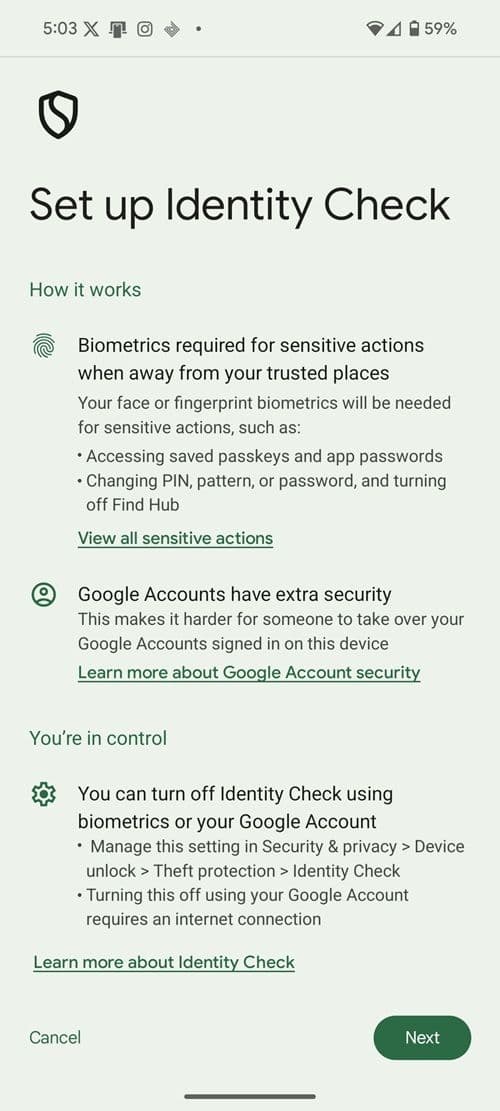
To turn on identity check on your Android phone, follow the steps below:
- Go to Settings
- Search type Identity Check in the search
- Select Identity Check
- Click Next to proceed
- Add your Trusted place
- Verify your phone number (if not already done)
- Sign in to a Google account, add a screen lock, and add biometrics
- Toggle on the Use Identity Check feature
Identity Check keeps your private data locked down when you’re out and about.
Trade-In Mode for Faster Upgrades
If you’re planning to trade in your old device for a new one, Android 16’s Trade-In Mode accelerates the process. With a single tap, your device displays all the info carriers and retailers need, like serial numbers, battery health, storage use, without diving into settings.
I like this feature because of how it removes friction from upgrading. This feature ensures a smooth, speedy exchange when you’re ready for your next device.
Conclusion
Android 16 isn’t just an incremental update; it’s a comprehensive overhaul that refines daily interactions, bolsters security, and transforms your tablet into a desktop-like workstation.
I like this update because of how each feature addresses real pain points, from notification clutter to battery life, multitasking, and privacy.
I recommend you upgrade to Android 16 today to enjoy forced notification auto-grouping, live progress updates, desktop windowing, and more. Leap now and experience the best that Android has to offer.
via - Google Android