
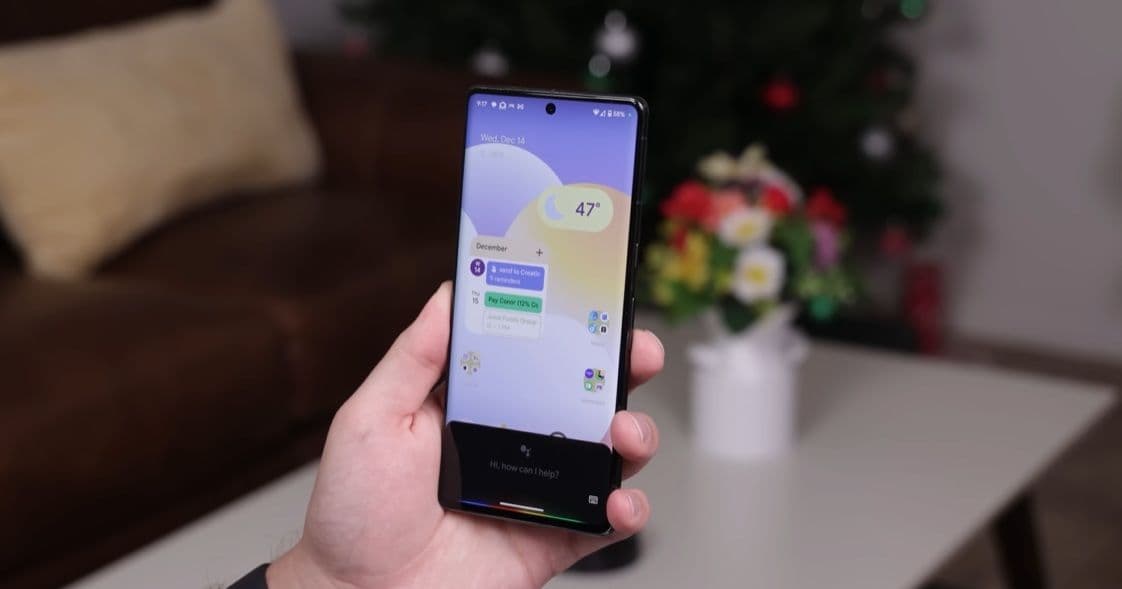
How to Use Google Assistant: Setup, Key Features and Device Support
 By Festus AyomikeSenior Editorabout 1 year ago
Quick Answer
Discover how to set up and use Google Assistant on Android, iOS & Wear OS. Learn key voice commands, smart-home control, and how it compares to Siri.
Advertisement
Google Assistant is Google’s AI-powered voice assistant. You can use it on Android phones, iPhones, Wear OS watches, Nest speakers, smart displays, and thousands of other connected devices.
This guide explains what Google Assistant does, how to set it up, and how it compares to Siri, all in clear, concise language optimized for search engines and news readers.
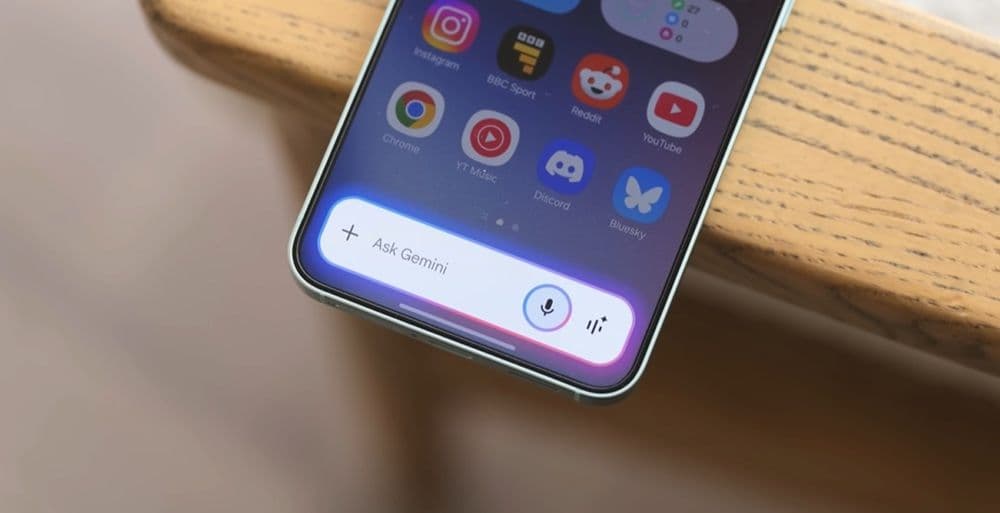
Note: Google is rolling out Gemini to replace Google Assistant on most devices. This guide still calls it “Google Assistant” to keep things simple; every command, feature, and setup step remains the same.
See Also: Google Pixel Phones Now Receiving Android 16 Update
What Is Google Assistant?
Google Assistant began as Google Voice Search and Google Now before becoming a full AI assistant on Pixel phones in 2016. Today, it uses natural language understanding to answer questions, run apps, control smart home gadgets, and more, all by voice or text.
Key Features of Google Assistant
Some of the key features of Google Assistant are:
1. General Knowledge
- Ask for weather, sports scores, definitions, or calculations.
- If Google Search shows an answer, Assistant will read it aloud and send a link.
2. Daily Help & Personal Information
- Check your commute, calendar events, or flight status.
- Use Voice Match to keep personal data private.
3. Device & App Control
- Play music, pause videos, or adjust phone settings (Wi-Fi, Bluetooth, flashlight).
- Cast shows to TVs with Chromecast or smart-TV integration.
4. Pixel-Exclusive Tools
- Screen or answer phone calls for you.
- Queue-hold in call centers automatically.
5. Smart Home & Wearables
- Control lights, locks, plugs, and robot vacuums by brand (JBL, Sonos, Bose, etc.).
- Use on Wear OS watches like the Pixel Watch or Samsung Galaxy Watch.
See Also: Nothing Phone 3 and Headphone 1 Will Be Sold in the US and Canada
Devices That Support Google Assistant
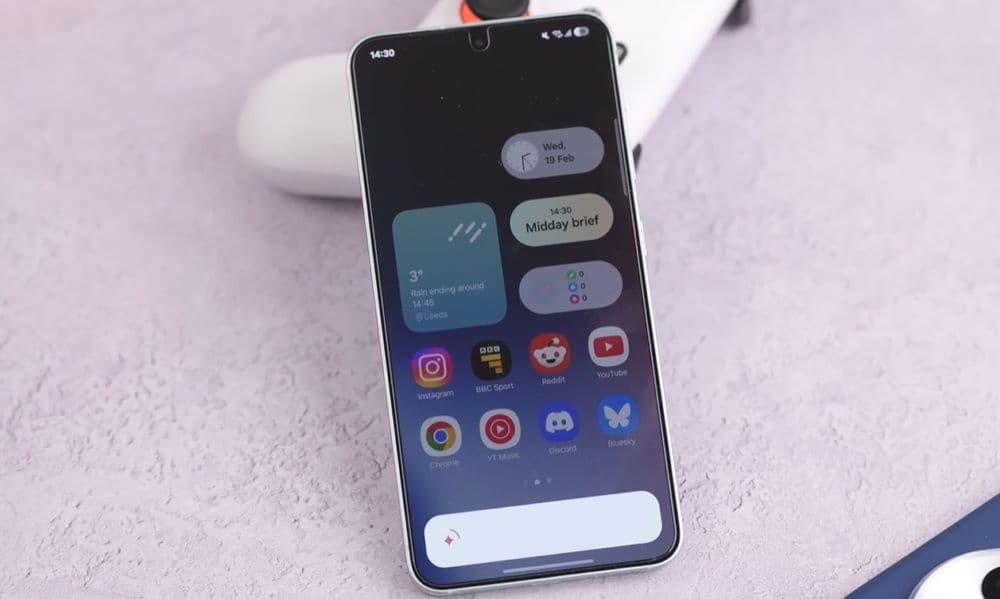
Below is the list of devices that support Google Assistant:
- Android Phones & Tablets: Most devices running Android 6.0+ with Google Mobile Services.
- iOS Devices: Download the Google Assistant app and set up a Siri shortcut (“Hey Siri, hey Google”).
- Wear OS Watches: Built-in on Pixel Watch, Galaxy Watch 5, and other Wear OS 3+ devices.
- Smart Speakers & Displays: Google Nest, JBL Link, Bose Home, Sonos, and more.
- Smart Home Gadgets: Locks, lights, plugs, thermostats, vacuums, all with Assistant integration.
See Also: Samsung Phone Deals in the US: Save up to $509 on Samsung Phones
How to Set Up Google Assistant
To set up and start using Google Assistant on your device, follow the steps below:
- Install or update the Google and Google Home apps.
- Open the Google app and tap your profile picture > Settings > Google Assistant.
- Enable Voice Match to link your voice to your data.
- Explore Assistant Routines to automate tasks like “Good morning” or “Bedtime.”
Customizing Your Assistant
If you wish to customize your Google Assistant, below are some things you can do:
- Change the Voice: In Assistant settings > Voice & sounds, pick from the color-coded options.
- Adjust Privacy: Delete recordings via “Hey Google, delete everything I said today.”
- Set Family Bells: Schedule household reminders (e.g., “Lunch is ready” at noon).
How to Turn Off Google Assistant
If you want to turn off the Google Assistant on your device, follow the steps below:
- Fully Disable: In Google Home app > Assistant settings > General, toggle off Google Assistant.
- Disable “Hey Google” Only: In Hey Google & Voice Match, untick Hey Google.
- Mute Nest Devices: Use each device’s hardware mute switch to stop all listening.
Siri vs. Google Assistant
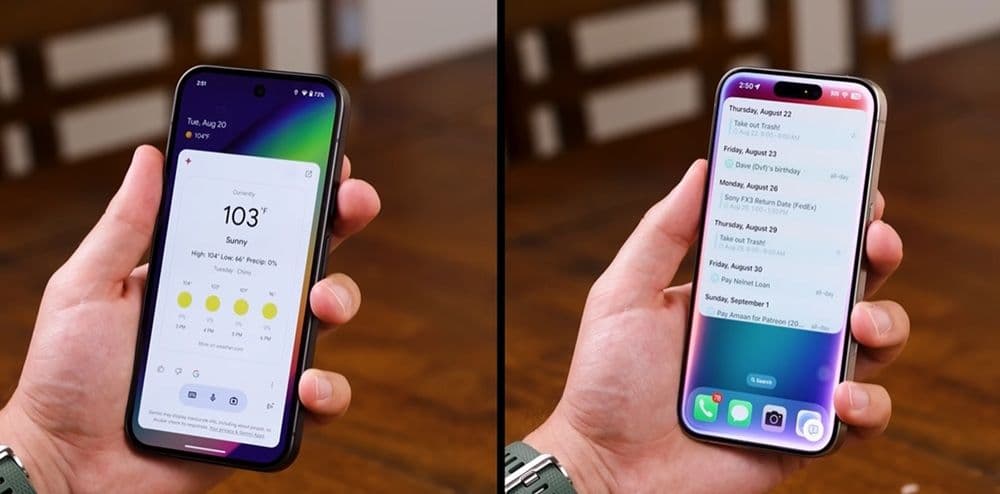
When you’re choosing a voice assistant, here are the main differences between Siri and Google Assistant:
1. Cross-Platform Support
- Google Assistant works on Android phones and tablets, iPhones (via the Assistant app), Wear OS watches, Nest speakers, smart displays, plus third-party devices from JBL, Sonos, Bose, and more.
- Siri runs only on Apple hardware, including iPhones, iPads, Apple Watch, HomePod, and Mac computers.
2. Voice Control & Setup
- Google Assistant responds to “Hey Google” or “OK Google.” On Android devices, it’s ready out of the box; on iOS, you must install the app and create a Siri shortcut (“Hey Siri, hey Google”).
- Siri responds immediately to “Hey Siri” on Apple devices with no extra setup required.
3. Call Features
- Google Assistant on Pixel phones can screen calls for you, announce the caller’s name, and even hold your place in a call queue.
- Siri does not offer built-in call screening or queue-holding features.
4. Smart-Home & Device Commands
- Google Assistant connects to a broad range of smart-home brands (lights, locks, plugs, vacuums) and casts content via Chromecast.
- Siri works best with Apple’s HomeKit ecosystem and AirPlay-enabled devices.
In short, Google Assistant shines if you use multiple platforms or want advanced call-handling and smart-home options. Siri is the natural choice if you’re fully invested in Apple’s hardware and HomeKit ecosystem.
Use Siri on iPhones and Google Assistant on Android for the smoothest experience. If you switch between platforms, Google Assistant travels with you; Siri does not.